We’ve all been there. Your next big presentation is coming up, you’ve got the content down, but creating the slides is eating up precious hours. Formatting, searching for images, tweaking layouts – strategic preparation often falls by the wayside. Microsoft has long promised to solve this problem with artificial intelligence. But with its latest developments, the tech giant is taking this support to a whole new level. The latest Microsoft Copilot PowerPoint updates (May 2026) transform the AI assistant from a simple chatbot into a true, autonomous design partner. In this article, you’ll learn about the groundbreaking new features awaiting you and how you can start using them in your daily work right away.
Smart Sources: Create Presentations from Websites and Notes
Often, the content for a presentation already exists – but not in PowerPoint, rather scattered across the web or in notes. Creating decks is radically simplified by two new grounding features. With “Public Website Grounding,” you simply provide Copilot with a public URL (e.g., a detailed blog article or a news post). The AI analyzes the text, filters out the key arguments, and builds a logically structured presentation from them, including suitable image suggestions.
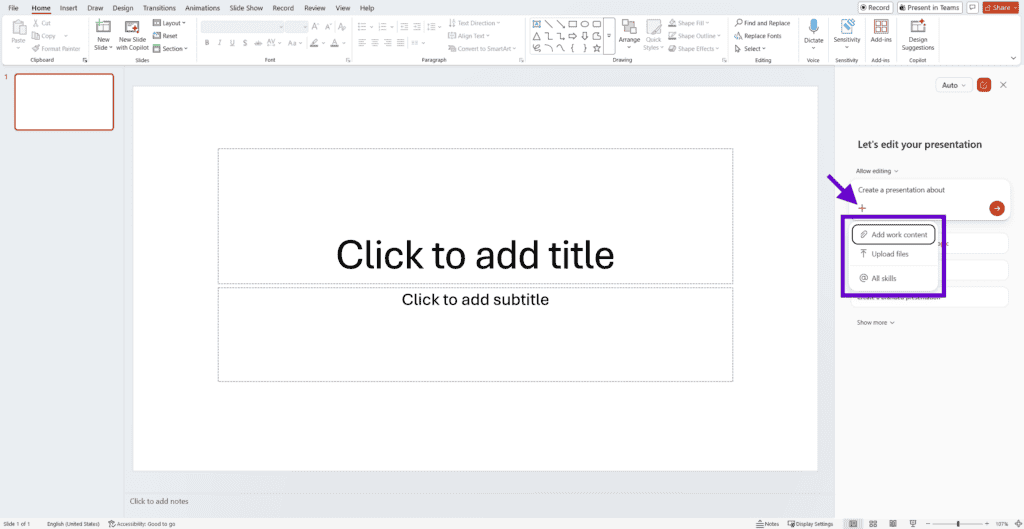
Do you prefer to work with your own thoughts and drafts? If you use the Copilot Notebook to collect ideas, quotes, and data across platforms, you can now activate this wealth of knowledge in PowerPoint with a single click. Copilot transforms your unstructured notes directly into a professional, presentation-ready slide deck.
The starting point for the AI-powered presentation: Right when you open the application, you can feed it your sources, notes, or web links via the Microsoft Copilot chat window.
The New Agent Mode: From Suggestion to Direct Implementation
Until now, Copilot in PowerPoint has primarily operated in a reactive manner. You entered a prompt, and the AI provided text suggestions or drafted a rough structure. Fine-tuning remained a tedious manual process. That’s now a thing of the past. At the heart of the new Microsoft Copilot PowerPoint updates is what’s known as “Agentic Mode.” Copilot now acts as an agent capable of taking direct action on your slide.
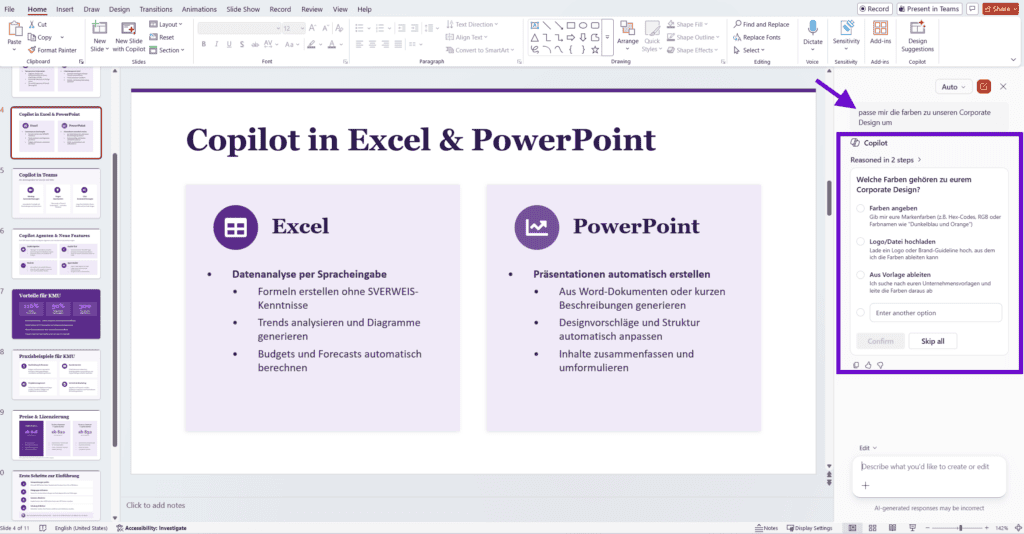
Specifically, this means: When you instruct Copilot in the chat window to optimize the layout, rephrase text, or adapt an existing slide deck to your corporate design, the tool no longer just suggests changes. It executes them independently and precisely within the app. Agent Mode allows for multi-step, complex workflows. For example, you can ask: “Translate these three slides into English, shorten the bullet points to a maximum of two lines, and align the graphics to the left.” Copilot seamlessly processes this command chain in the background while you focus on the core messages. This not only saves clicks but also almost completely eliminates the typical formatting frustration.
The new Agent Mode in action: Microsoft Copilot executes complex design and text commands directly on the PowerPoint slide.
Full Creative Control: Multi-Model Image Generation and AI Image 2
A picture is worth a thousand words – but finding the right image in PowerPoint often feels like looking for a needle in a haystack. Here, too, the latest updates deliver a massive leap in quality. Microsoft is breaking away from the rigid constraints of a single image model and giving users full control over visual design.
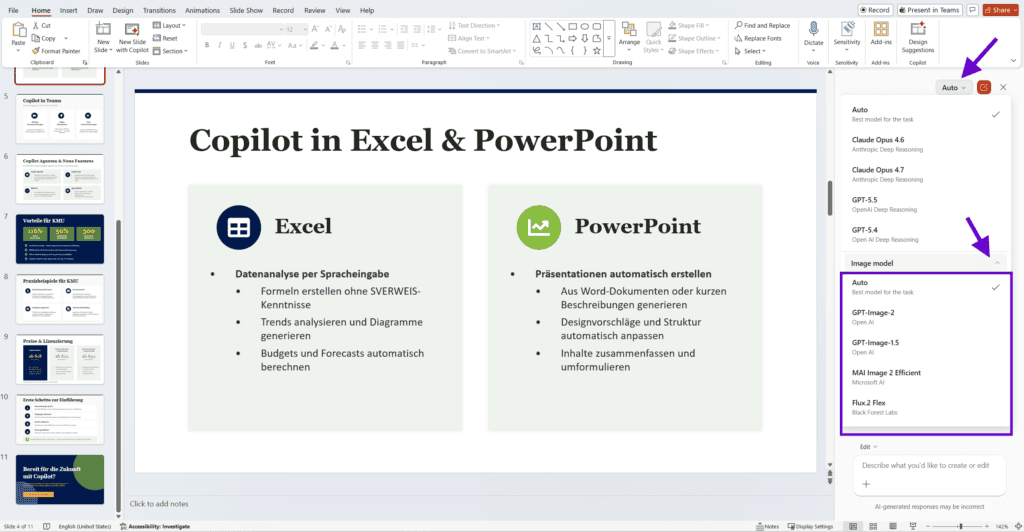
In the optimized Copilot menu, you can now decide for yourself which AI architecture should generate your graphics. You can choose from leading models like OpenAI’s DALL-E successor as well as highly efficient alternatives like Flux. If you can’t decide, select the “Auto” option: Here, Copilot analyzes the context of your slide and automatically selects the most suitable model for the desired image style. This is complemented by the new “Microsoft AI Image 2 Efficient” model. This model is specifically designed to instantly modify existing images directly on the slide, remove backgrounds, or adjust stylistic elements without interrupting your workflow.
Maximum flexibility in design: In the optimized selection menu, you can choose which AI model generates your images.
Visual Understanding: Microsoft Copilot Learns to “See”
One of the most technically impressive innovations involves what’s known as multimodal grounding. Until now, Copilot primarily processed the text elements of a presentation. Embedded graphics, complex charts, or screenshots were a black box to the AI. That is changing fundamentally.
Thanks to state-of-the-art computer vision technology, Copilot now understands the visual content of your slides:
Chart analysis: Copilot independently extracts data from complex charts and Excel imports that appear as images on the slide. You can ask the AI questions directly, such as: “What trend does the chart on slide 4 show, and how can we summarize this in text?”
Contextual answers: For questions about the entire slide deck, visual elements are now incorporated into the answers. This prevents misunderstandings when text and graphics interact on a slide.
Smart image descriptions: Automatically generated alt text for accessibility becomes much more precise thanks to visual understanding.
Streamlined UI for Greater Focus
To ensure the new features don’t clutter the user interface, Microsoft has streamlined PowerPoint’s visual design. Interaction has been reduced to two intuitive entry points: a discreet Copilot icon in the bottom-right corner of the application window, and the context-sensitive menu that appears immediately when you select text or objects. This minimizes distractions.
Productivity Redefined – Create Your PowerPoint Presentations Now with AI Support
The latest Microsoft Copilot PowerPoint updates clearly show where the journey is headed: away from a purely text-based assistant, toward a collaborative co-designer. Thanks to autonomous agent mode, deep visual understanding of charts, and flexible image generation, slide design is no longer a daunting task. You save valuable time that you can instead invest in rhetorical preparation and fine-tuning your core messages. Artificial intelligence doesn’t do the thinking for you, but it frees you from time-consuming formatting micromanagement.
Now it’s your turn: Optimize your workflow! Open your next PowerPoint presentation and try out the new shortcuts. Don’t have a Microsoft Copilot license yet, or do you need help implementing Microsoft Copilot in your company? Book an appointment –we’re happy to help!
Share this post
Stay up to date.
Subscribe to our blog and never miss a post again. We will not spam you, but only inform you about new posts.
You might also be interested in these articles
Microsoft 365: EWS to Be Phased Out Starting in October 2026 – What Admins Need to Know Now
Modern cloud security requires constant adaptation. To keep interfaces future-proof, high-performing, and resilient against attacks, Microsoft is phasing out outdated protocols. Specifically, this affects ...
Security in SMEs: Why Perfectionism Is the Enemy of Good
The digital landscape is changing rapidly, and Swiss companies face enormous challenges. Storing data exclusively within the country or maintaining complete control over every ...
Book a Microsoft Teams meeting appointment with Christoph Schoch. After booking, you will receive an appointment invitation. There you will find a link for the Teams meeting. Of course you can also send us an e-mail or call us directly.