Microsoft 365: New Setting for Data Location – Check by December 14, 2026
Microsoft is introducing a new tenant setting that determines whether your Microsoft 365 customer data remains stored in Switzerland or may be stored regionally ...

Anyone who makes calls using Microsoft Teams is probably familiar with this situation: The phone rings, but instead of a name, only a phone number appears. The caller isn’t recognized in Microsoft Teams, even though the contact should actually be in the company’s system somewhere. It’s exactly these kinds of situations that cause unnecessary interruptions, follow-up questions, and uncertainty in day-to-day work.
It becomes particularly frustrating when contacts exist in the CRM or Outlook but are still not visible in Microsoft Teams. Many companies only realize during their daily work that contact information in Microsoft 365 is often stored in different locations – and is therefore not reliably available. Anyone who wants to view Microsoft Teams contacts therefore needs more than just a telephony solution. But why does this happen? And how can Teams contacts be displayed so that employees can immediately see who’s calling?
Many companies wonder why Microsoft Teams can’t display contacts correctly or why incoming calls appear only as phone numbers. There are usually several underlying causes – partly technical issues, partly organizational data problems. Both problem areas are closely related and often only become apparent in day-to-day use when employees are working intensively with Microsoft Teams telephony.
The technical problem stems from the fact that Microsoft Teams cannot automatically access all of a company’s data sources. Many companies deliberately manage their contact data centrally in a CRM system, ERP solutions, or other business applications. This makes sense in principle. However, this does not mean that this information is automatically available in Microsoft Teams.
This is because Microsoft Teams primarily uses data available within Microsoft 365 or Exchange Online to display contacts and identify callers. If customer data is stored exclusively in the CRM, in Excel files, or in other third-party sources, Microsoft Teams simply does not recognize these contacts.
If there is also no synchronization between these data sources and Microsoft 365, new contacts do not appear in Teams, changes are not reflected, and employees see outdated information. Instead of a name, only the phone number appears when a call comes in.
Furthermore, many companies face an additional organizational problem: the lack of centralized contact management. Contacts accumulate over the years in a wide variety of locations. Sales, support, administration, and individual employees maintain their own contact lists, store numbers locally, or work with different versions of the data. Some information is stored in the CRM system, while other data resides in Outlook contacts, Excel files, or shared mailboxes.
This results in typical data chaos. Phone numbers are missing, contacts are duplicated, names are spelled differently, and information becomes outdated over time. Often, no one knows exactly which data entry is current or which source should be considered authoritative.
It is precisely this combination of technical fragmentation, a lack of centralized data maintenance, and incorrect settings that prevents Microsoft Teams from reliably displaying contacts. Especially in larger companies or distributed teams, this quickly leads to unnecessary effort, additional searching, and a lack of transparency in daily communication.
Many companies initially try to solve the problem manually. Contacts are exported, imported, or regularly distributed via CSV files. In the short term, this approach often works surprisingly well. Over time, however, additional effort is required, which becomes increasingly noticeable in day-to-day operations.
Contacts must be updated multiple times, data versions differ from one another, and outdated information remains in circulation. At the same time, the support burden on IT increases because employees report missing or incorrect contacts.
It becomes particularly problematic when employees leave the company or switch teams. Often, old contacts remain, while important information disappears elsewhere.
This is precisely where centralized and automatic contact synchronization becomes crucial. This is where TwinCap First’s Contact Sync comes in. The solution automatically synchronizes contacts from central third-party sources to Microsoft 365 or Exchange Online. As a result, the relevant contacts are then also available in Microsoft Teams.
Companies can define the following themselves:
The contacts then appear as normal Outlook or Exchange contacts. This allows Microsoft Teams to use these contacts for displaying names, caller ID, and searching within Microsoft Teams telephony.
Contact Sync is particularly well-suited for companies that want to centrally provide relevant business and customer contacts. It’s important to note that caller ID in Microsoft Teams and Exchange Online may reach technical limits with very large contact databases. In practice, we recommend Contact Sync for environments with up to approximately 10,000–15,000 synchronized contacts. Although significantly larger datasets can be synchronized, the resolution of contacts during incoming calls is affected by Exchange Online’s response times. For companies that, for example, want to use their entire CRM (with tens of thousands or hundreds of thousands of contacts) for caller ID, our Easy Lookup solution is often the better choice.
The major advantage: Employees no longer have to manually maintain contacts. Changes are made centrally and distributed automatically. This not only improves caller ID in Teams; Outlook, smartphones, and mobile Teams apps also work more consistently and reliably.
Ultimately, it’s not just about technology. It’s about efficiency in everyday work. When Microsoft Teams cannot display contacts, unnecessary interruptions occur. Employees waste time, support requests increase, and important information isn’t available exactly when it’s needed.
Centralized and automatic contact synchronization in Microsoft 365, on the other hand, ensures up-to-date contact information, reliable caller ID, less manual effort, and better collaboration. Anyone who uses Microsoft Teams professionally as a communication platform should therefore also have a solid solution for contact management. After all, it’s only when Microsoft Teams can display contacts that a phone number becomes a real person again.
Would you like to automatically update Outlook contacts and reliably identify callers in Microsoft Teams? Then it’s worth taking a look at Contact Sync from TwinCap First. Schedule a free initial consultation with TwinCap First now and learn how to make centralized contact data available in Microsoft Teams – simply, securely, and automatically.
Subscribe to our blog and never miss a post again. We will not spam you, but only inform you about new posts.
Microsoft is introducing a new tenant setting that determines whether your Microsoft 365 customer data remains stored in Switzerland or may be stored regionally ...
Modern cloud security requires constant adaptation. To keep interfaces future-proof, high-performing, and resilient against attacks, Microsoft is phasing out outdated protocols. Specifically, this affects ...
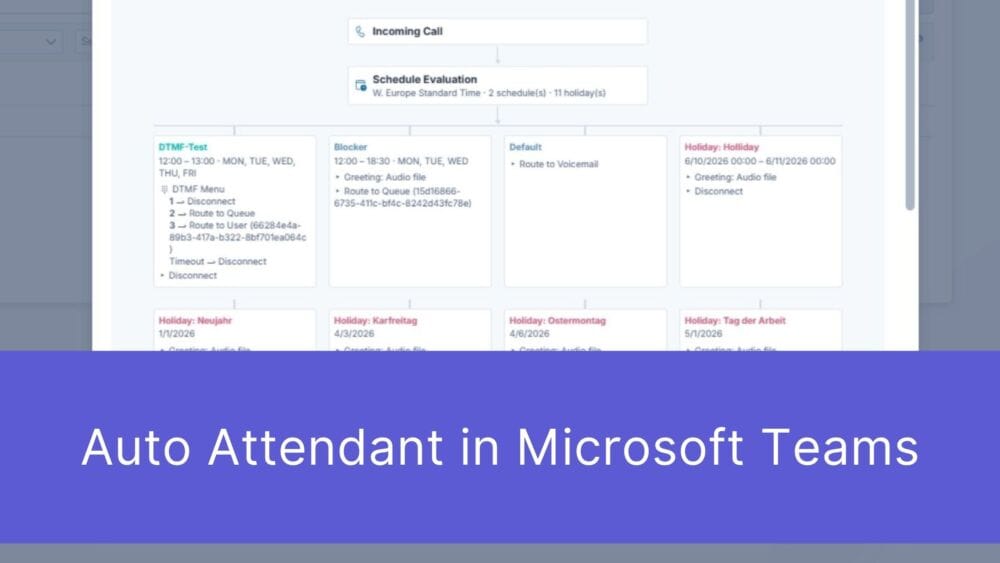
First impressions matter – and that’s truer than ever in the digital age. When a potential customer picks up the phone to contact your ...

The digital landscape is changing rapidly, and Swiss companies face enormous challenges. Storing data exclusively within the country or maintaining complete control over every ...
Book a Microsoft Teams meeting appointment with Christoph Schoch. After booking, you will receive an appointment invitation. There you will find a link for the Teams meeting. Of course you can also send us an e-mail or call us directly.
If you have any questions, please use our Help Centre and/or open a ticket for your request.